> ## Documentation Index
> Fetch the complete documentation index at: https://docs.segmentstream.com/llms.txt
> Use this file to discover all available pages before exploring further.
# GA4 BigQuery Export
> Set up Google Analytics 4 BigQuery Export to send event data to SegmentStream for attribution and ML-powered insights.
To use event data from Google Analytics 4 in SegmentStream, you need to first set up a Google Analytics 4 BigQuery Link. Refer to the [Set up GA4 BigQuery Link](/project-configuration/events-tracking/ga4-bigquery-export/set-up-ga4-bigquery-link) guide and ensure the following requirements are met:
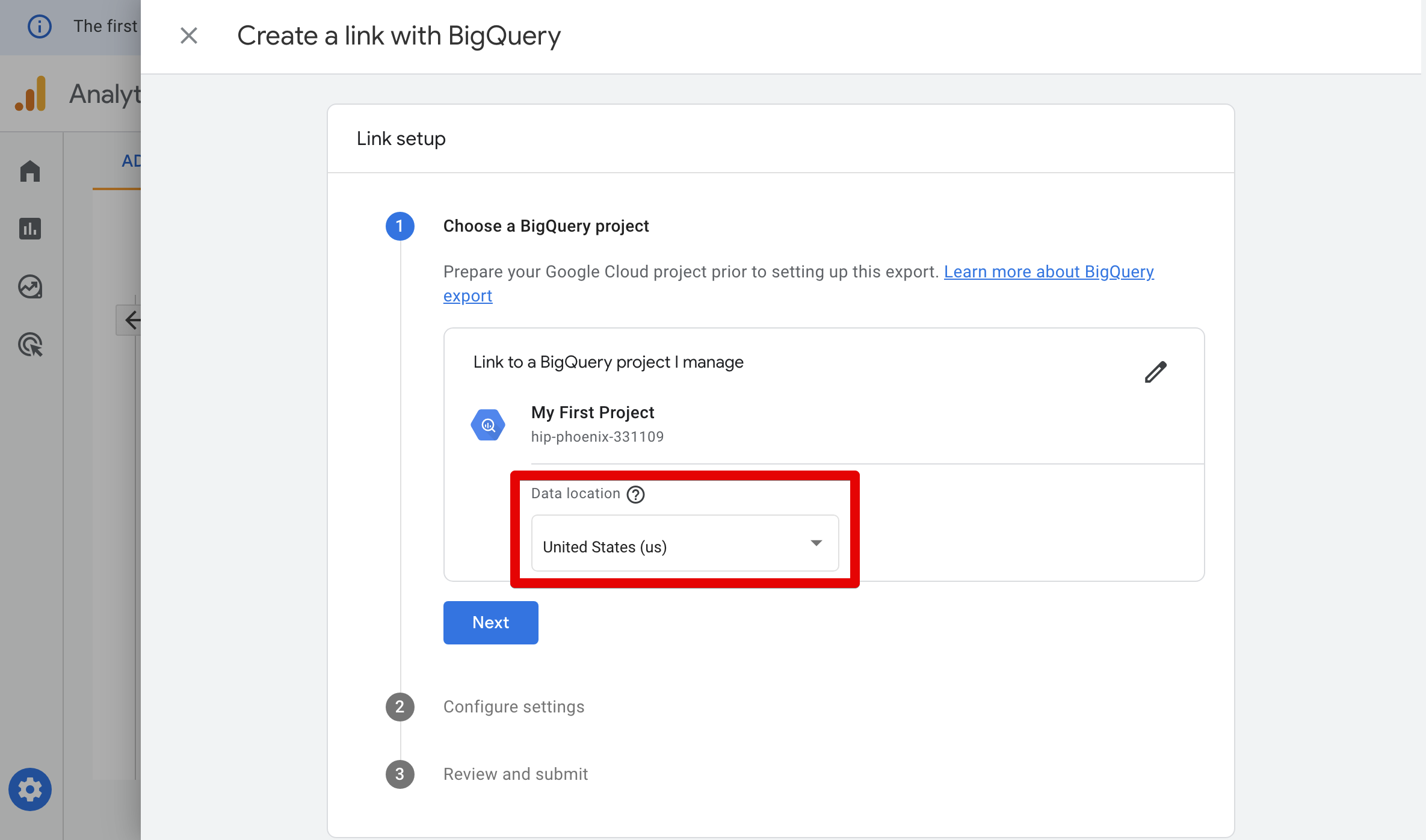
* The data location of the BigQuery dataset used in SegmentStream matches the one configured in GA4.
 * Both the **Daily** and **Streaming** export types are enabled.
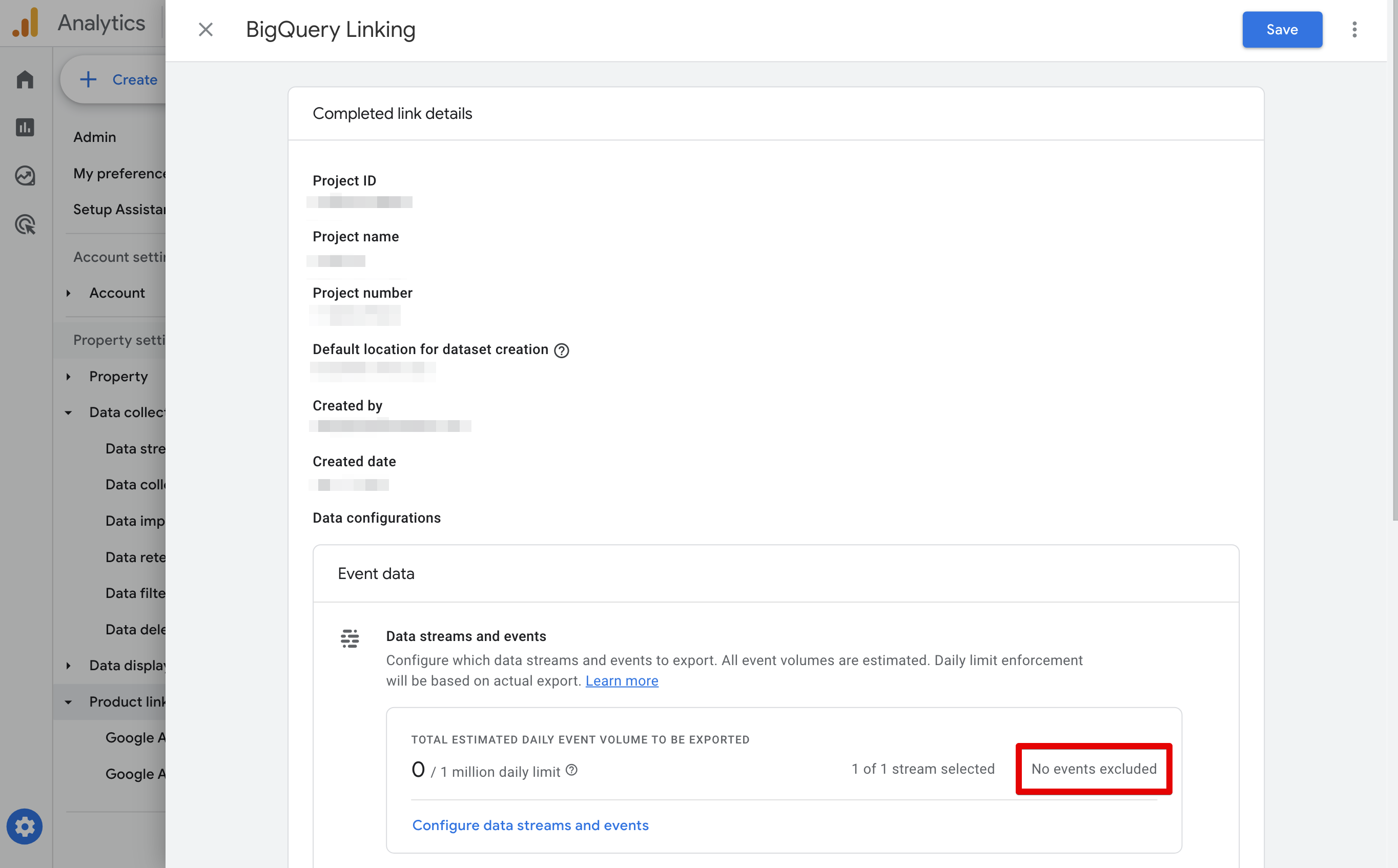
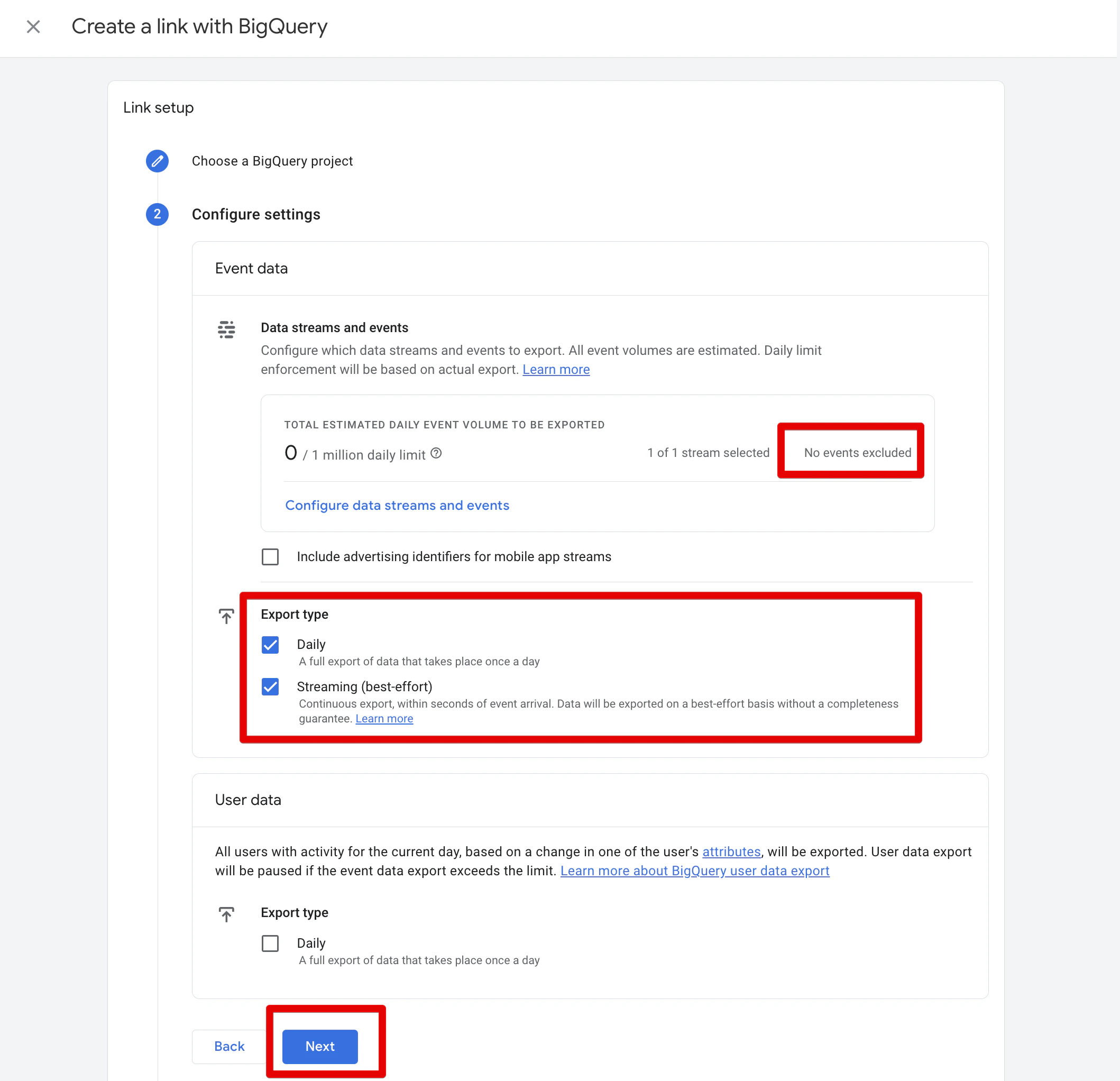 * No events are excluded in your BigQuery Link settings.
 Once the GA4 BigQuery Export is set up, data should start flowing to your BigQuery project within 24 hours. After that happens, you can connect your Google Analytics 4 to SegmentStream.
## Connecting Google Analytics 4 to SegmentStream
Inside the admin panel navigate to **Settings** > **Events Tracking**.
Click **+ ADD** and select the **Google Analytics 4** option.
In the drawer that opens, authorise your Google account.
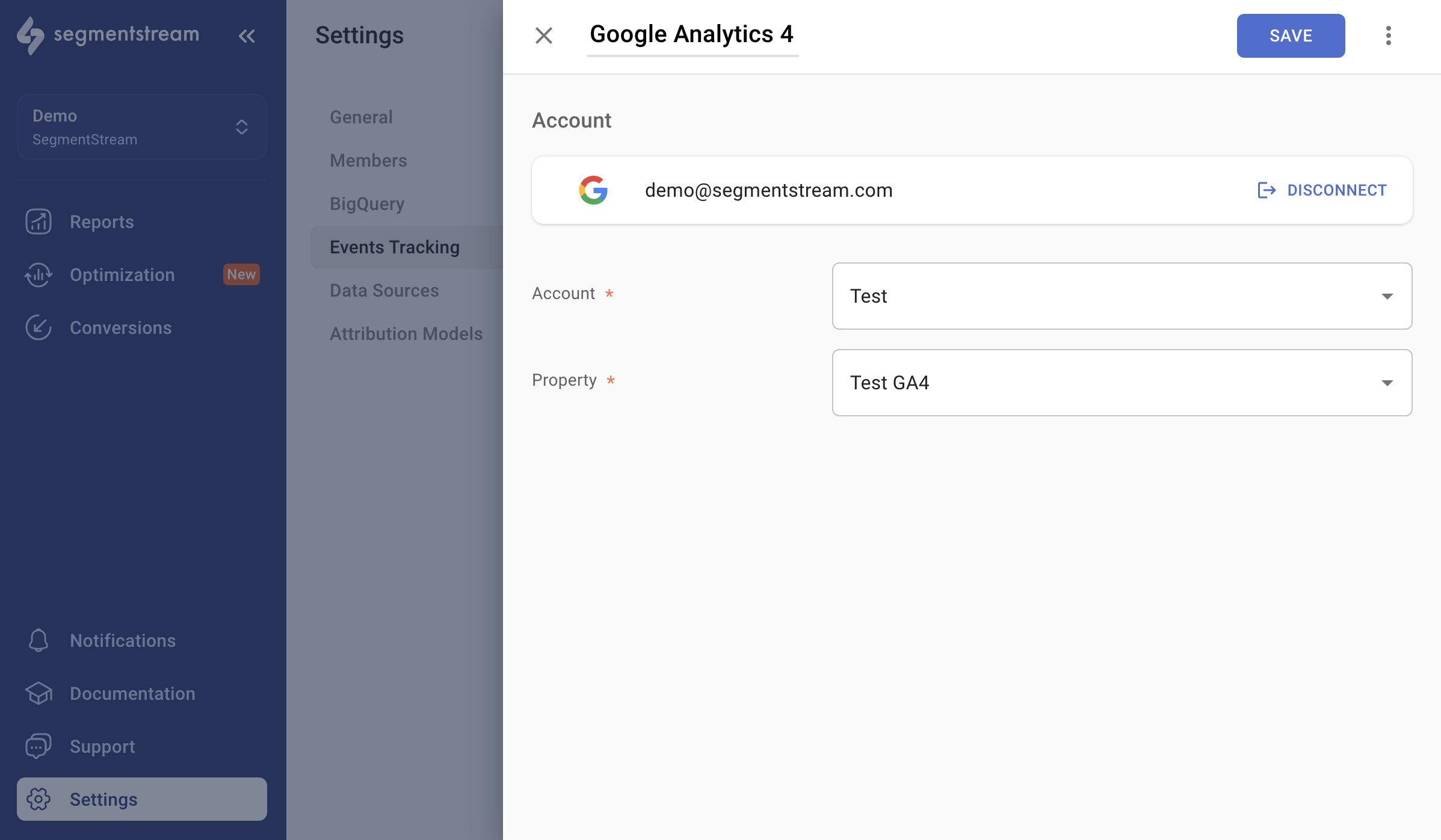
Select the account and property where your data is collected.
Click **Save**.
All event data exported to your BigQuery in the past 60 days will be processed by SegmentStream, and reports will become available. This process might take a couple of hours.
Follow the guide on [Additional GA4 settings](/project-configuration/events-tracking/ga4-bigquery-export/additional-ga4-settings) to pass additional parameters that help SegmentStream integrate better with your business.
Once the GA4 BigQuery Export is set up, data should start flowing to your BigQuery project within 24 hours. After that happens, you can connect your Google Analytics 4 to SegmentStream.
## Connecting Google Analytics 4 to SegmentStream
Inside the admin panel navigate to **Settings** > **Events Tracking**.
Click **+ ADD** and select the **Google Analytics 4** option.
In the drawer that opens, authorise your Google account.
Select the account and property where your data is collected.
Click **Save**.
All event data exported to your BigQuery in the past 60 days will be processed by SegmentStream, and reports will become available. This process might take a couple of hours.
Follow the guide on [Additional GA4 settings](/project-configuration/events-tracking/ga4-bigquery-export/additional-ga4-settings) to pass additional parameters that help SegmentStream integrate better with your business.
 ## Referral exclusion logic
To ensure SegmentStream provides accurate insights, it must correctly identify where each session's traffic is coming from. Properly setting up referral exclusions is key, especially when users move between different domains or subdomains during redirects.
Typical scenarios for using referral exclusions include stopping traffic from payment gateways, login systems, or other internal processes from being counted as external referrals.
SegmentStream uses the settings from your Google Analytics 4 (GA4) property to filter out unwanted referrals. If your GA4 is correctly set up, SegmentStream automatically applies those same settings. This process helps identify and exclude unwanted referral traffic through the following methods:
* Identifying when visitors navigate within different parts of your site or its subdomains, preventing these movements from being counted as external visits.
* Redirects between websites specified in your GA4 stream's cross-domain measurement function are treated similarly to redirects within the same domain and are excluded from referral tracking. Learn more about [setting up cross-domain measurement](https://support.google.com/analytics/answer/10071811?hl=en) in Google's documentation.
* You can further control unwanted referrals by configuring the unwanted referrals list in your GA4 stream settings. Refer to Google's documentation for [configuring unwanted referrals](https://support.google.com/analytics/answer/10327750?hl=en).
## BigQuery access issues
If the Google Analytics 4 BigQuery link is connected to a different project than the one specified in the SegmentStream BigQuery settings, you need to provide additional permissions before connecting event tracking.
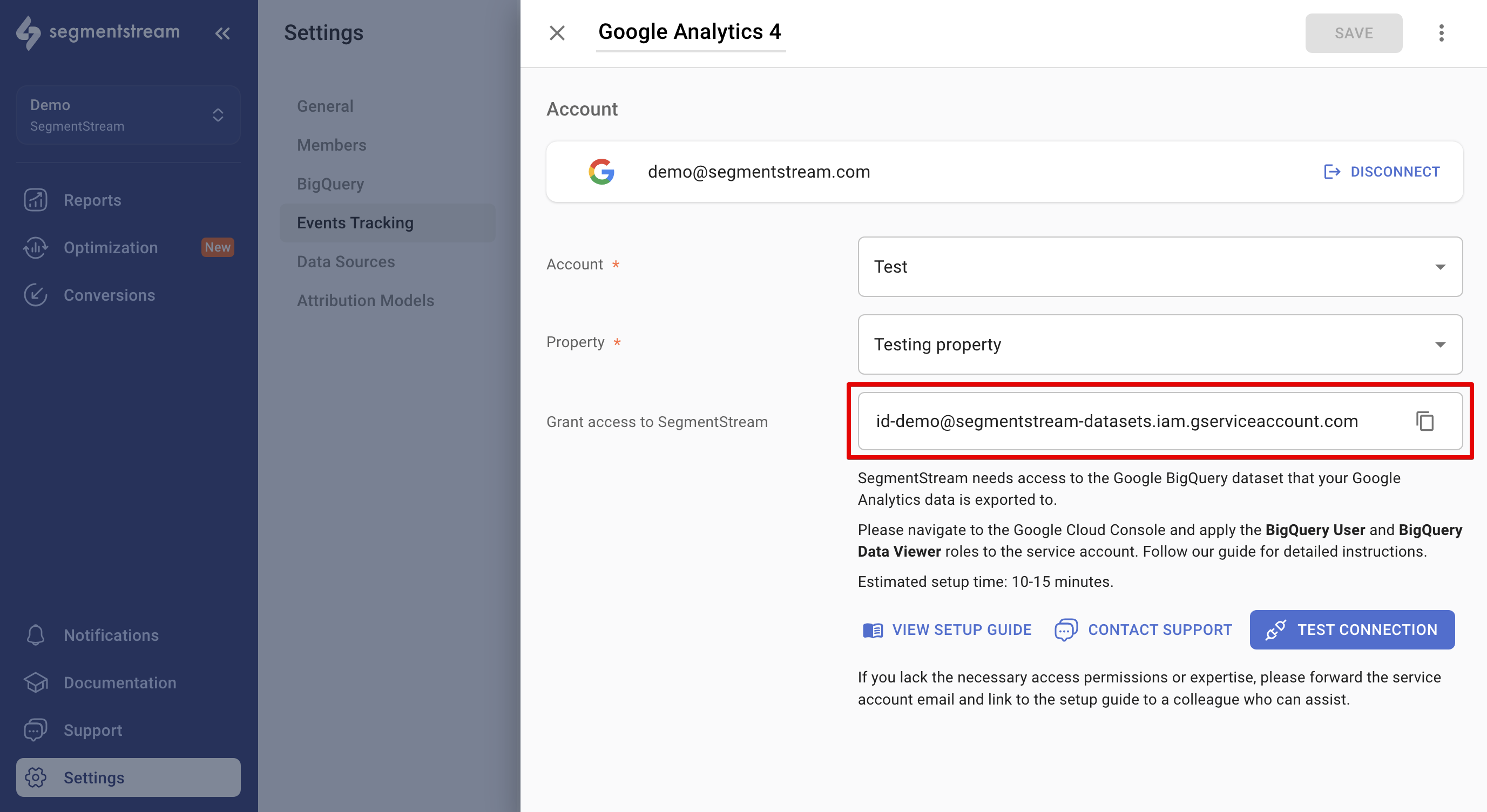
### Get your service account email
1. In your SegmentStream project, navigate to **Settings** > **Events Tracking**.
2. Click on the Google Analytics 4 option.
3. Select the account and property where your data is collected.
4. Copy the service account email from the Google Analytics 4 connection settings.
## Referral exclusion logic
To ensure SegmentStream provides accurate insights, it must correctly identify where each session's traffic is coming from. Properly setting up referral exclusions is key, especially when users move between different domains or subdomains during redirects.
Typical scenarios for using referral exclusions include stopping traffic from payment gateways, login systems, or other internal processes from being counted as external referrals.
SegmentStream uses the settings from your Google Analytics 4 (GA4) property to filter out unwanted referrals. If your GA4 is correctly set up, SegmentStream automatically applies those same settings. This process helps identify and exclude unwanted referral traffic through the following methods:
* Identifying when visitors navigate within different parts of your site or its subdomains, preventing these movements from being counted as external visits.
* Redirects between websites specified in your GA4 stream's cross-domain measurement function are treated similarly to redirects within the same domain and are excluded from referral tracking. Learn more about [setting up cross-domain measurement](https://support.google.com/analytics/answer/10071811?hl=en) in Google's documentation.
* You can further control unwanted referrals by configuring the unwanted referrals list in your GA4 stream settings. Refer to Google's documentation for [configuring unwanted referrals](https://support.google.com/analytics/answer/10327750?hl=en).
## BigQuery access issues
If the Google Analytics 4 BigQuery link is connected to a different project than the one specified in the SegmentStream BigQuery settings, you need to provide additional permissions before connecting event tracking.
### Get your service account email
1. In your SegmentStream project, navigate to **Settings** > **Events Tracking**.
2. Click on the Google Analytics 4 option.
3. Select the account and property where your data is collected.
4. Copy the service account email from the Google Analytics 4 connection settings.
 ### Find the BigQuery project linked to GA4
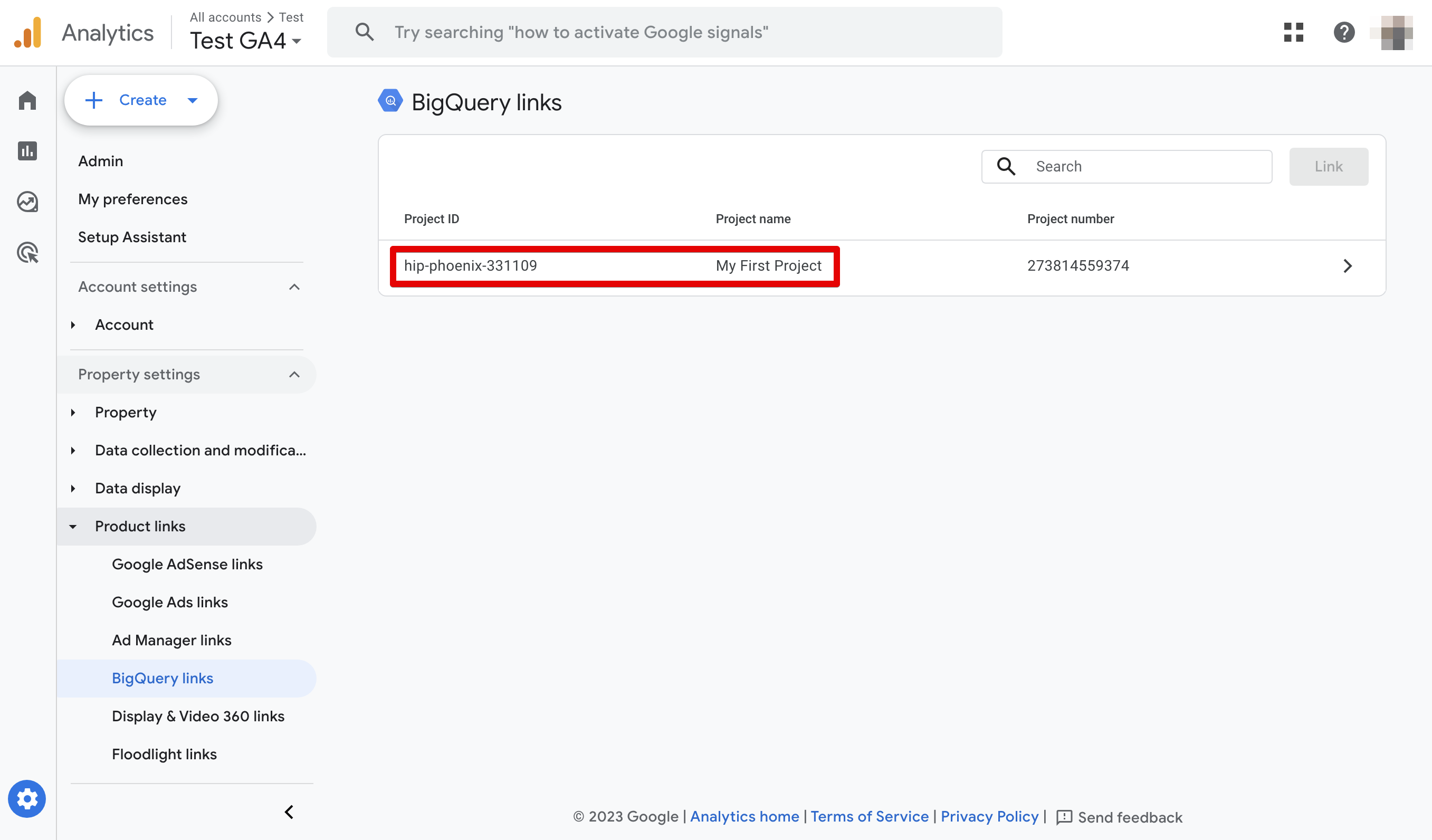
1. In your [Google Analytics](https://analytics.google.com/) property, go to **Admin**.
2. Under Product Links, click **BigQuery Links**.
3. You will see the ID and name of the linked project.
### Find the BigQuery project linked to GA4
1. In your [Google Analytics](https://analytics.google.com/) property, go to **Admin**.
2. Under Product Links, click **BigQuery Links**.
3. You will see the ID and name of the linked project.
 ### Set permissions in your Google Cloud account
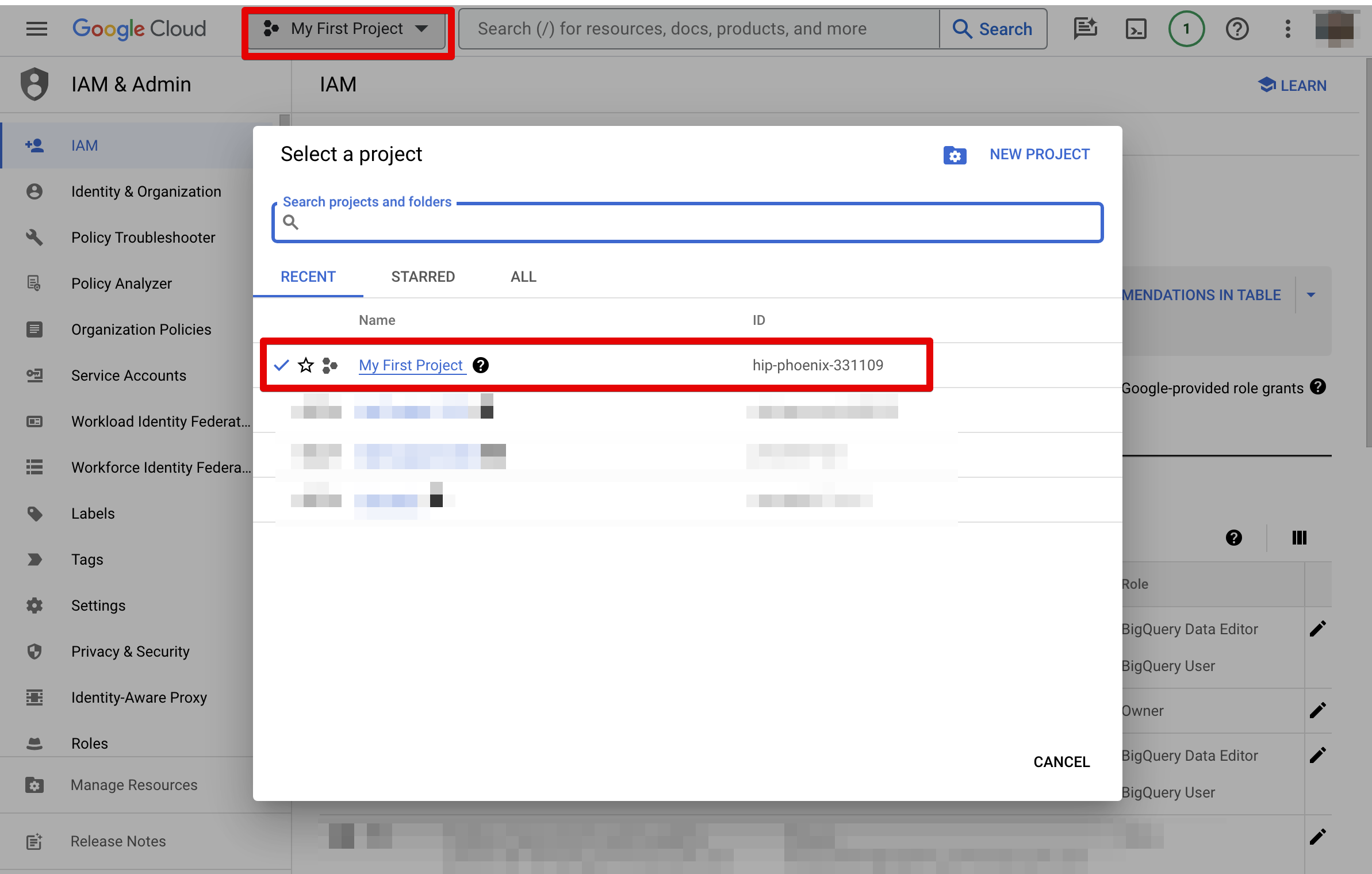
Go to the [IAM page](https://console.cloud.google.com/iam-admin/iam) in the Google Cloud Console.
Click on the project selection menu in the navigation bar, and select the project linked to Google Analytics 4.
### Set permissions in your Google Cloud account
Go to the [IAM page](https://console.cloud.google.com/iam-admin/iam) in the Google Cloud Console.
Click on the project selection menu in the navigation bar, and select the project linked to Google Analytics 4.
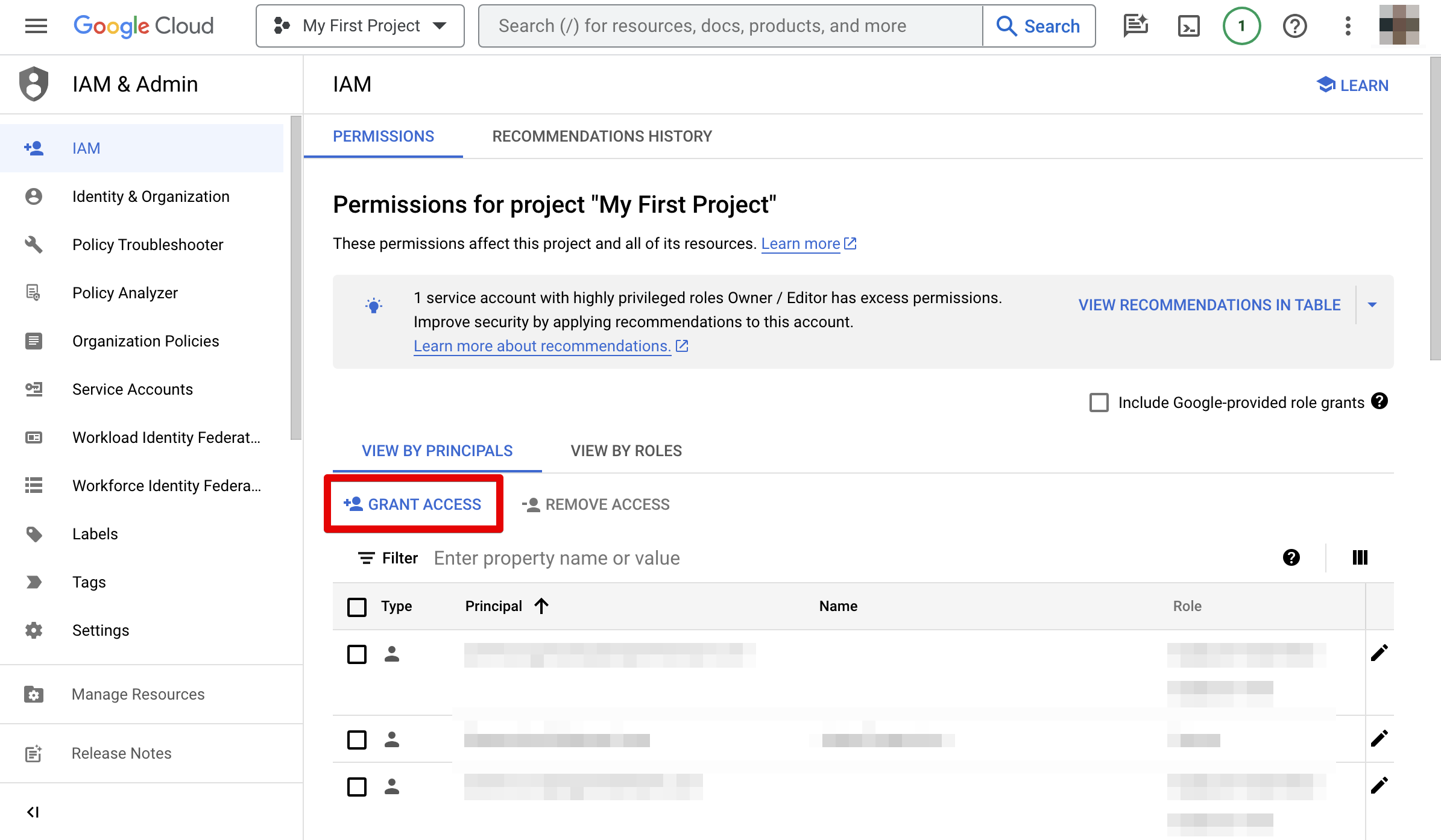
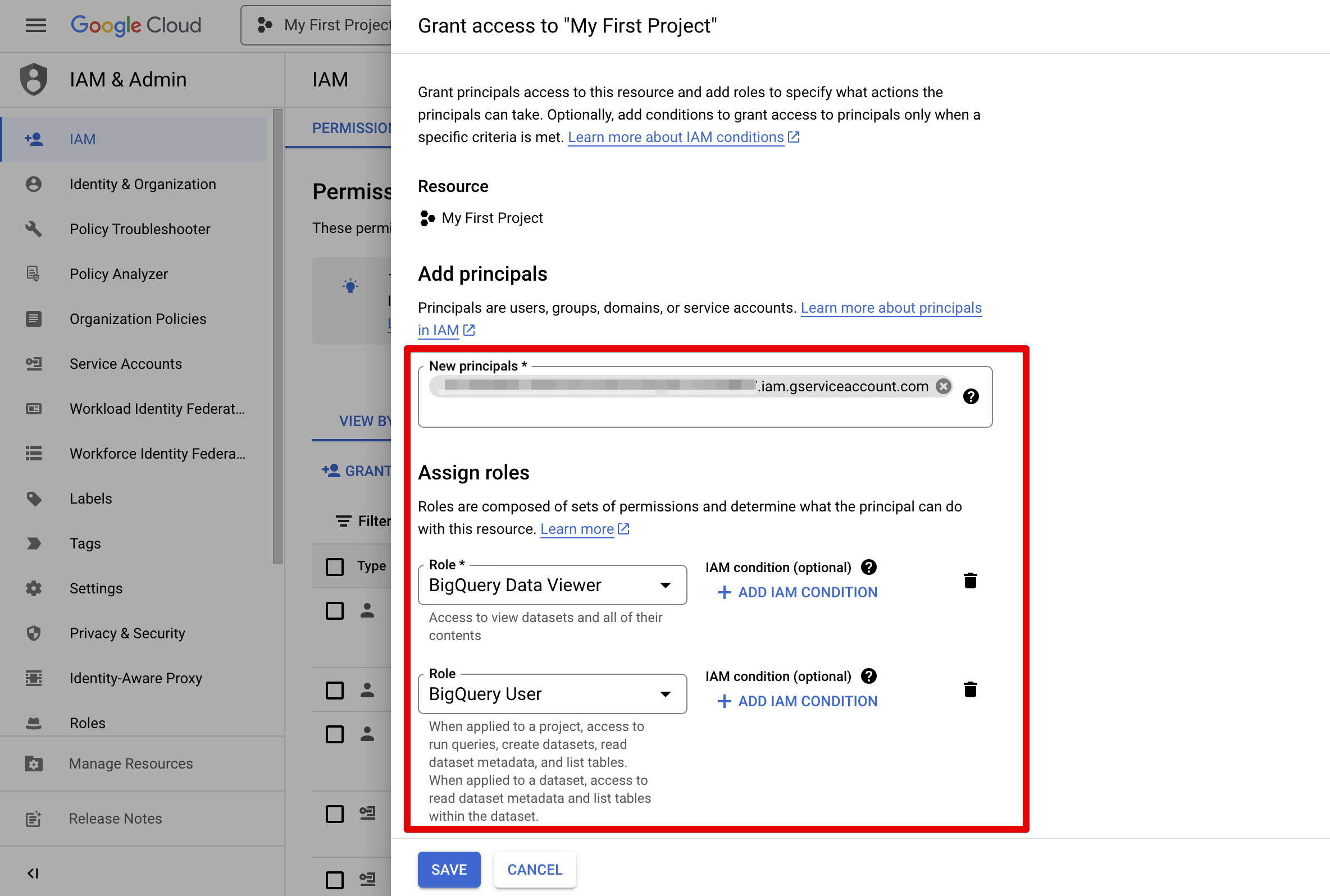
 Click **GRANT ACCESS**.
 1. Paste the service account email address into the **New principals** field.
2. Select the [**BigQuery Data Viewer** and **BigQuery User**](https://cloud.google.com/bigquery/docs/access-control#bigquery-roles) roles.
3. Click **Save**.
1. Paste the service account email address into the **New principals** field.
2. Select the [**BigQuery Data Viewer** and **BigQuery User**](https://cloud.google.com/bigquery/docs/access-control#bigquery-roles) roles.
3. Click **Save**.
 ### Test connection and save
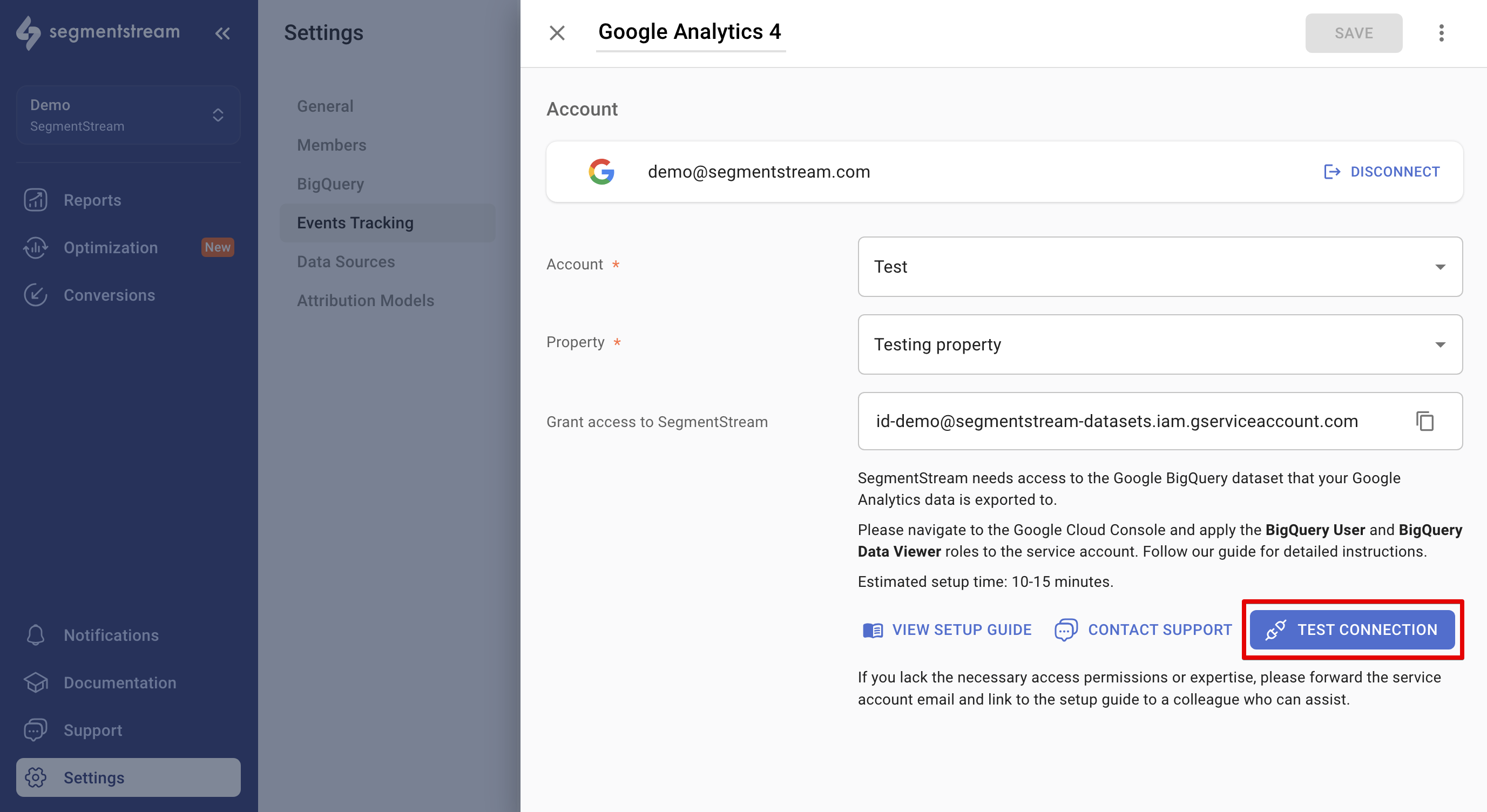
1. Return to your SegmentStream project and navigate to the Google Analytics 4 connection.
2. Click **TEST CONNECTION**.
3. If the permissions have been correctly set up, the **SAVE** button should be active. Click it to complete your Google Analytics 4 tracking setup.
### Test connection and save
1. Return to your SegmentStream project and navigate to the Google Analytics 4 connection.
2. Click **TEST CONNECTION**.
3. If the permissions have been correctly set up, the **SAVE** button should be active. Click it to complete your Google Analytics 4 tracking setup.
 ## In this section
Step-by-step guide to linking your GA4 property to BigQuery.
Configure custom user properties and event parameters for better integration.
This documentation is built and hosted on [Mintlify](https://mintlify.com), a developer documentation platform.
## In this section
Step-by-step guide to linking your GA4 property to BigQuery.
Configure custom user properties and event parameters for better integration.
This documentation is built and hosted on [Mintlify](https://mintlify.com), a developer documentation platform.