> ## Documentation Index
> Fetch the complete documentation index at: https://docs.segmentstream.com/llms.txt
> Use this file to discover all available pages before exploring further.
# Additional GA4 settings
> Configure custom user properties and event parameters in GA4 to improve SegmentStream integration with your business.
This guide provides step-by-step instructions for implementing custom user properties and event parameters in your Google Analytics 4 (GA4) property.
## Overview
Each section below describes the implementation for one specific property or parameter:
1. Ever Paid (`ever_paid`)
2. Is Bot (`is_bot`)
3. Customer Type (`customer_type`)
All examples include Google Tag Manager (GTM) and gtag.js approaches.
## Ever Paid (user property)
Tracks whether a user has ever made a payment or conversion on your platform. Useful for differentiating actions of paying vs. non-paying users, especially for freemium or subscription-based businesses.
### Expected values
* `true` -- The user has made at least one payment.
* `false` -- The user has never paid.
### Implementation via Google Tag Manager
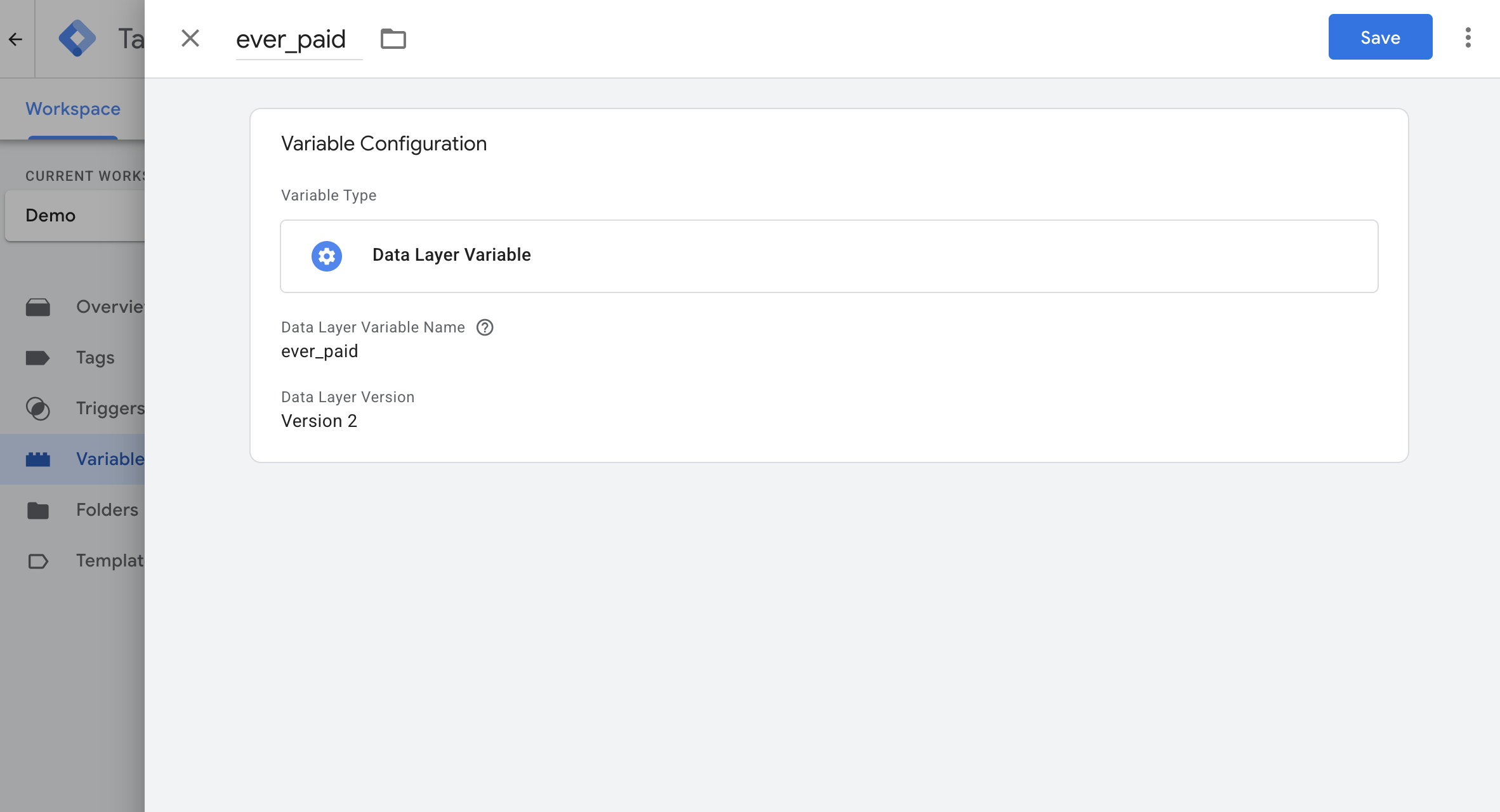
Create a **Data Layer Variable** for `ever_paid`.
Create a Variable inside GTM that reads that value from the dataLayer, name it `ever_paid`.
 If you don't already have one, create a **GA4 Event Settings Variable**.
Under the **User Properties** section, add:
* **Property Name:** `ever_paid`
* **Value:** Your Data Layer variable (e.g., `{{ever_paid}}`)
If you don't already have one, create a **GA4 Event Settings Variable**.
Under the **User Properties** section, add:
* **Property Name:** `ever_paid`
* **Value:** Your Data Layer variable (e.g., `{{ever_paid}}`)
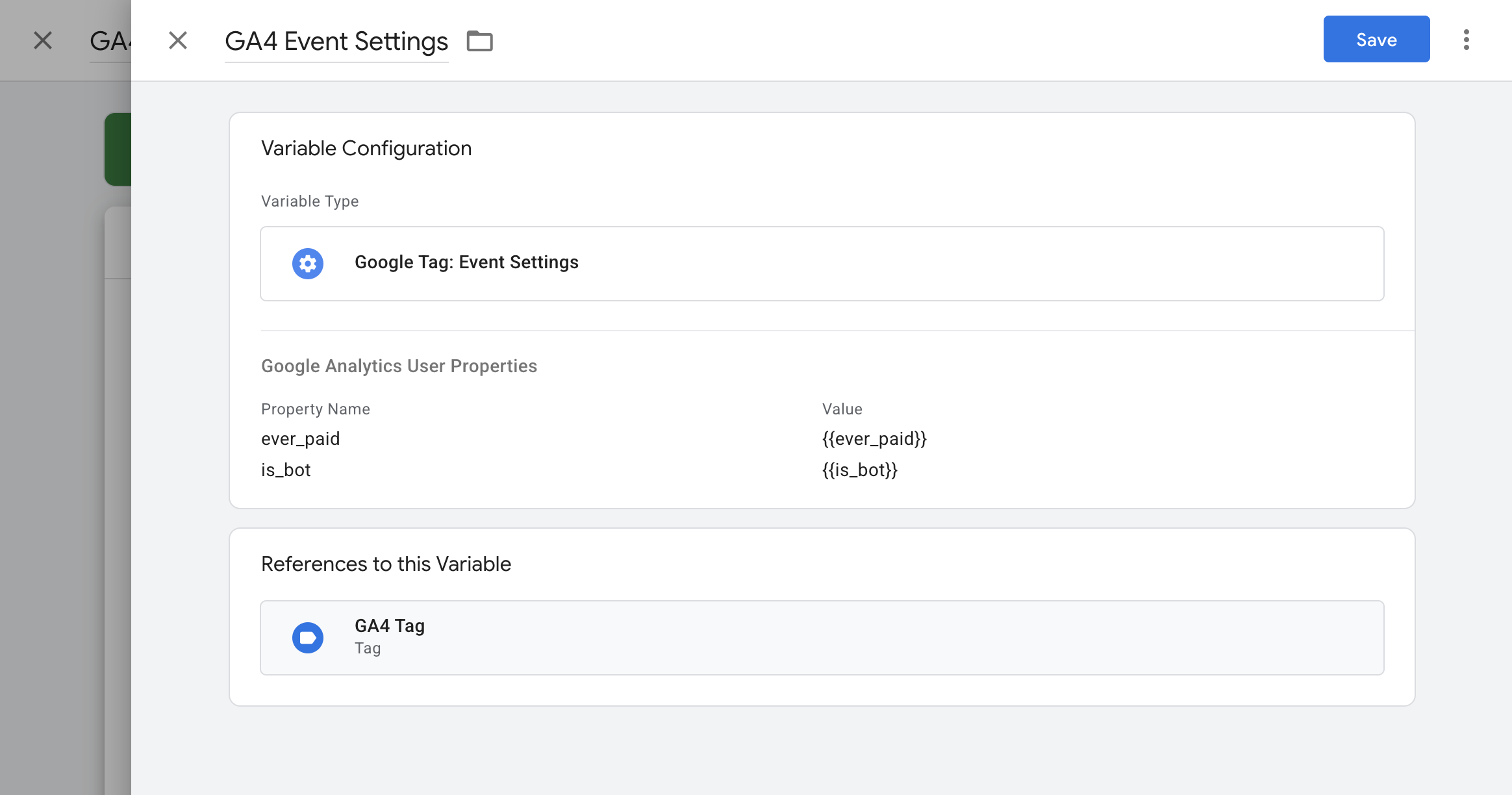 Select this Event Settings Variable in all GA4 configuration and event tags.
### Implementation via gtag.js
```javascript theme={null}
gtag('config', 'GA_MEASUREMENT_ID', {
'user_properties': {
'ever_paid': true // or false
}
});
```
### Create custom dimension in GA4
Go to **Admin** > **Data display** > **Custom definitions**.
Click **Create custom dimension** and set:
* **Scope:** User
* **Dimension name:** ever\_paid
* **Description:** Indicates if the user has ever paid
* **User property:** `ever_paid`
Select this Event Settings Variable in all GA4 configuration and event tags.
### Implementation via gtag.js
```javascript theme={null}
gtag('config', 'GA_MEASUREMENT_ID', {
'user_properties': {
'ever_paid': true // or false
}
});
```
### Create custom dimension in GA4
Go to **Admin** > **Data display** > **Custom definitions**.
Click **Create custom dimension** and set:
* **Scope:** User
* **Dimension name:** ever\_paid
* **Description:** Indicates if the user has ever paid
* **User property:** `ever_paid`
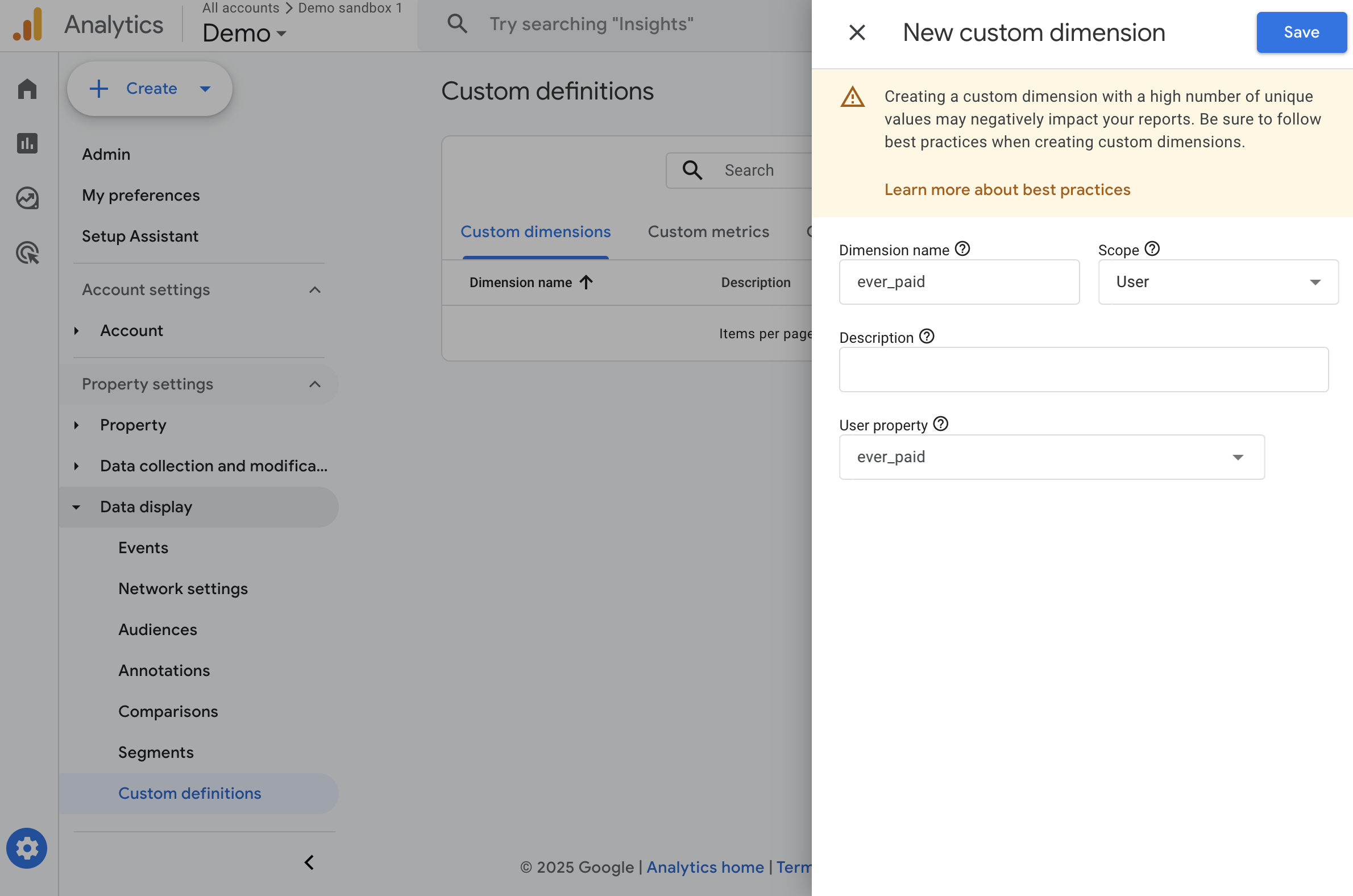 Click **Save**.
## Is Bot (user property)
Flags users identified as bots or automated sessions. This allows filtering out bot traffic.
### Expected values
* `true` -- The session/user is identified as a bot.
* `false` -- The user is human.
### Implementation via Google Tag Manager
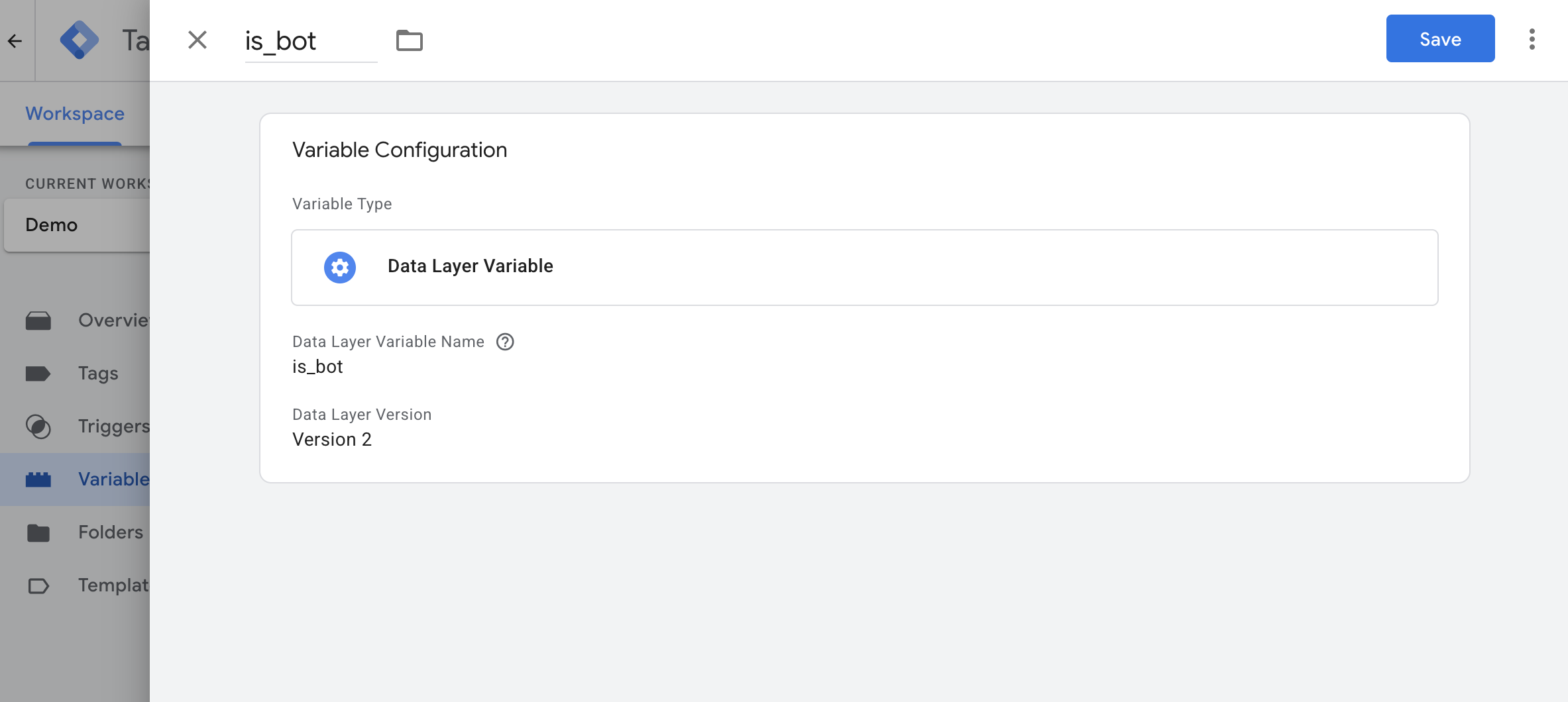
Create a **Data Layer Variable** for `is_bot`.
Create a Variable inside GTM that reads that value from the dataLayer, name it `is_bot`.
Click **Save**.
## Is Bot (user property)
Flags users identified as bots or automated sessions. This allows filtering out bot traffic.
### Expected values
* `true` -- The session/user is identified as a bot.
* `false` -- The user is human.
### Implementation via Google Tag Manager
Create a **Data Layer Variable** for `is_bot`.
Create a Variable inside GTM that reads that value from the dataLayer, name it `is_bot`.
 If you don't already have one, create a **GA4 Event Settings Variable**.
Under the **User Properties** section, add:
* **Property Name:** `is_bot`
* **Value:** Your Data Layer variable (e.g., `{{is_bot}}`)
If you don't already have one, create a **GA4 Event Settings Variable**.
Under the **User Properties** section, add:
* **Property Name:** `is_bot`
* **Value:** Your Data Layer variable (e.g., `{{is_bot}}`)
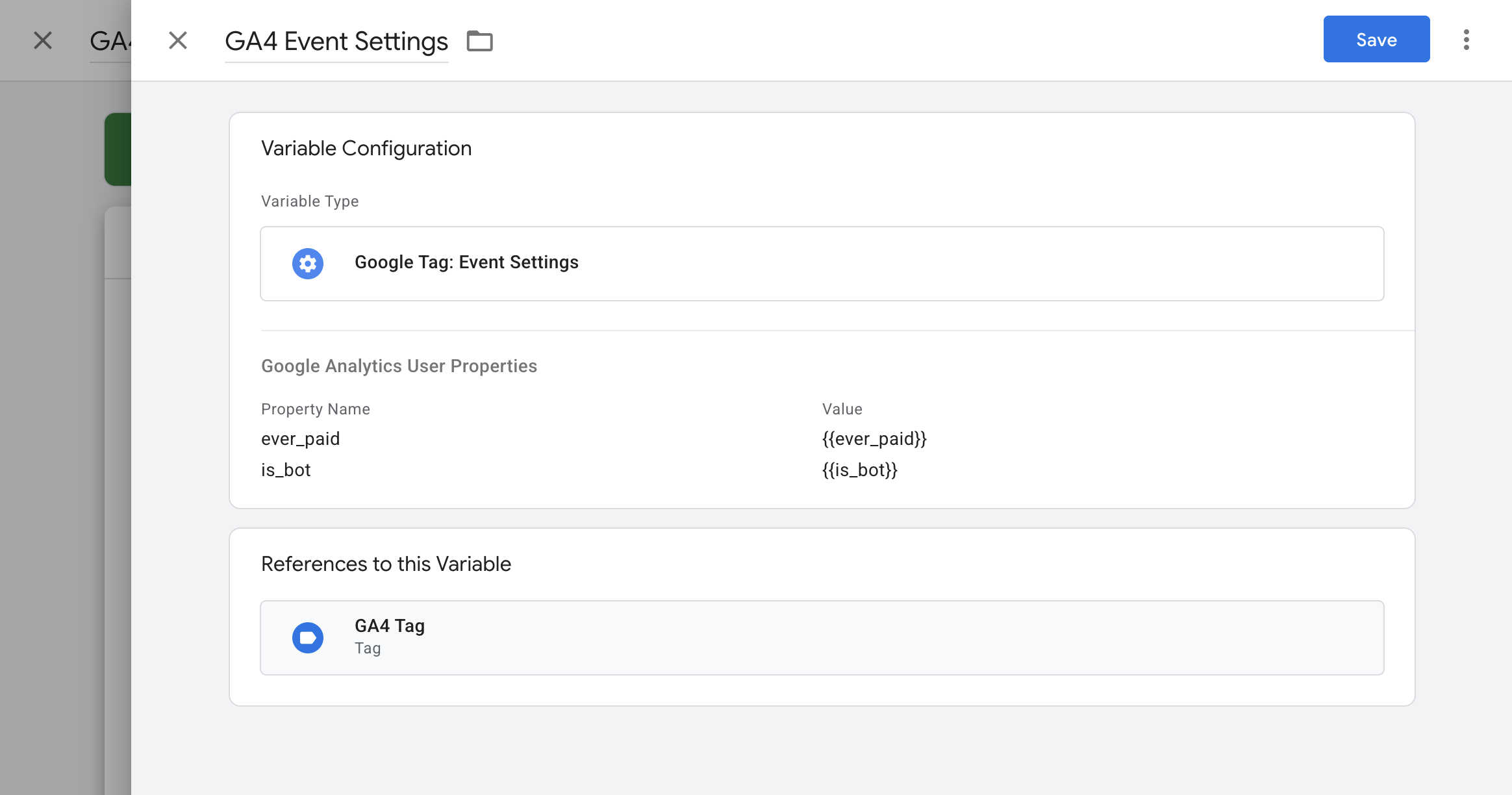 Select this Event Settings Variable in all GA4 configuration and event tags.
### Implementation via gtag.js
```javascript theme={null}
gtag('config', 'GA_MEASUREMENT_ID', {
'user_properties': {
'is_bot': true // or false
}
});
```
### Create custom dimension in GA4
Go to **Admin** > **Data display** > **Custom definitions**.
Click **Create custom dimension** and set:
* **Scope:** User
* **Dimension name:** is\_bot
* **Description:** Indicates if the user is identified as a bot
* **User property:** `is_bot`
Select this Event Settings Variable in all GA4 configuration and event tags.
### Implementation via gtag.js
```javascript theme={null}
gtag('config', 'GA_MEASUREMENT_ID', {
'user_properties': {
'is_bot': true // or false
}
});
```
### Create custom dimension in GA4
Go to **Admin** > **Data display** > **Custom definitions**.
Click **Create custom dimension** and set:
* **Scope:** User
* **Dimension name:** is\_bot
* **Description:** Indicates if the user is identified as a bot
* **User property:** `is_bot`
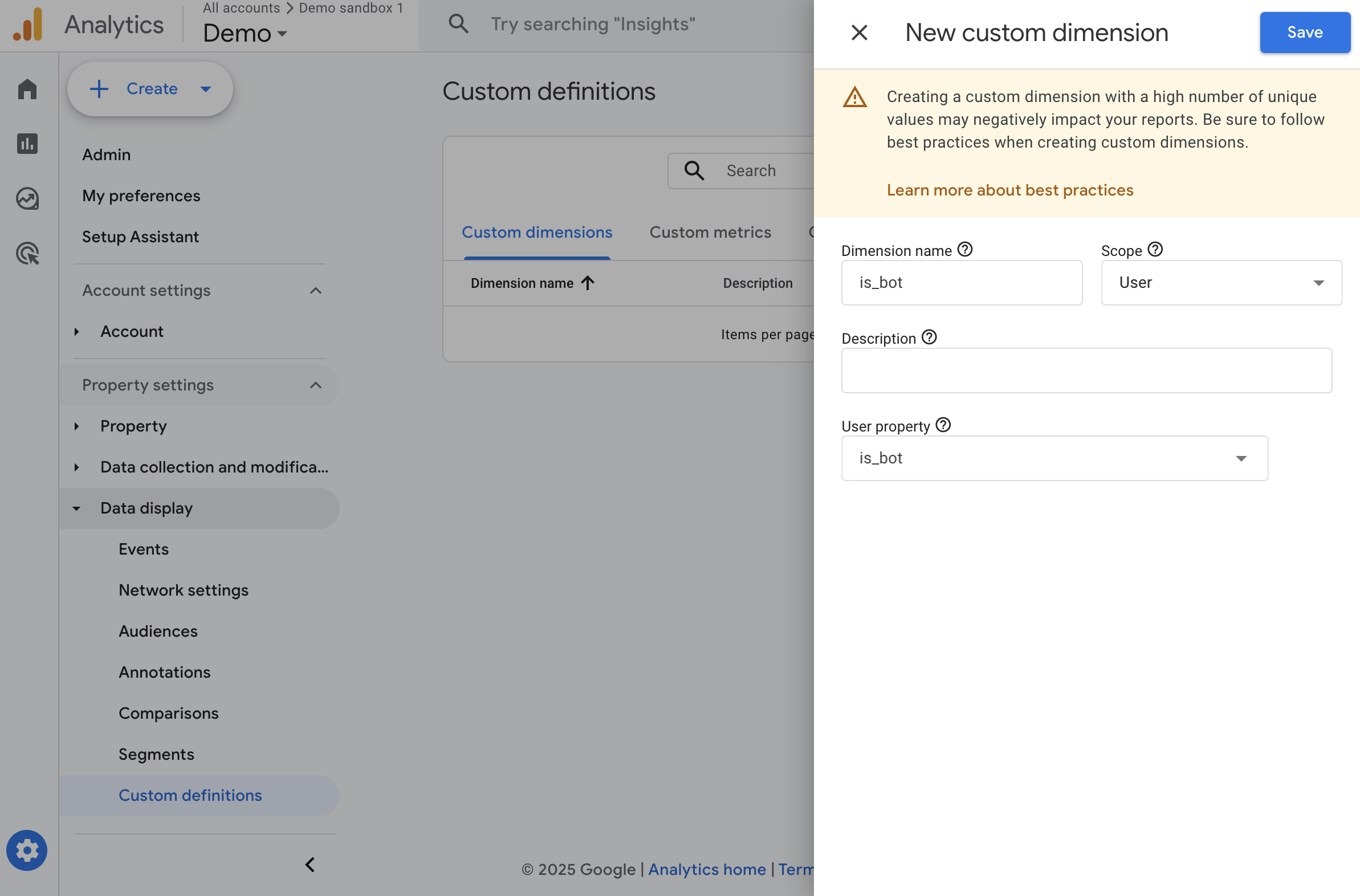 Click **Save**.
## Customer Type (event parameter)
Tracks whether a conversion event comes from a new or returning customer. Helps measure acquisition vs. retention performance.
### Expected values
* `new` -- The customer is making their first purchase.
* `returning` -- The customer has purchased before.
### Implementation via Google Tag Manager
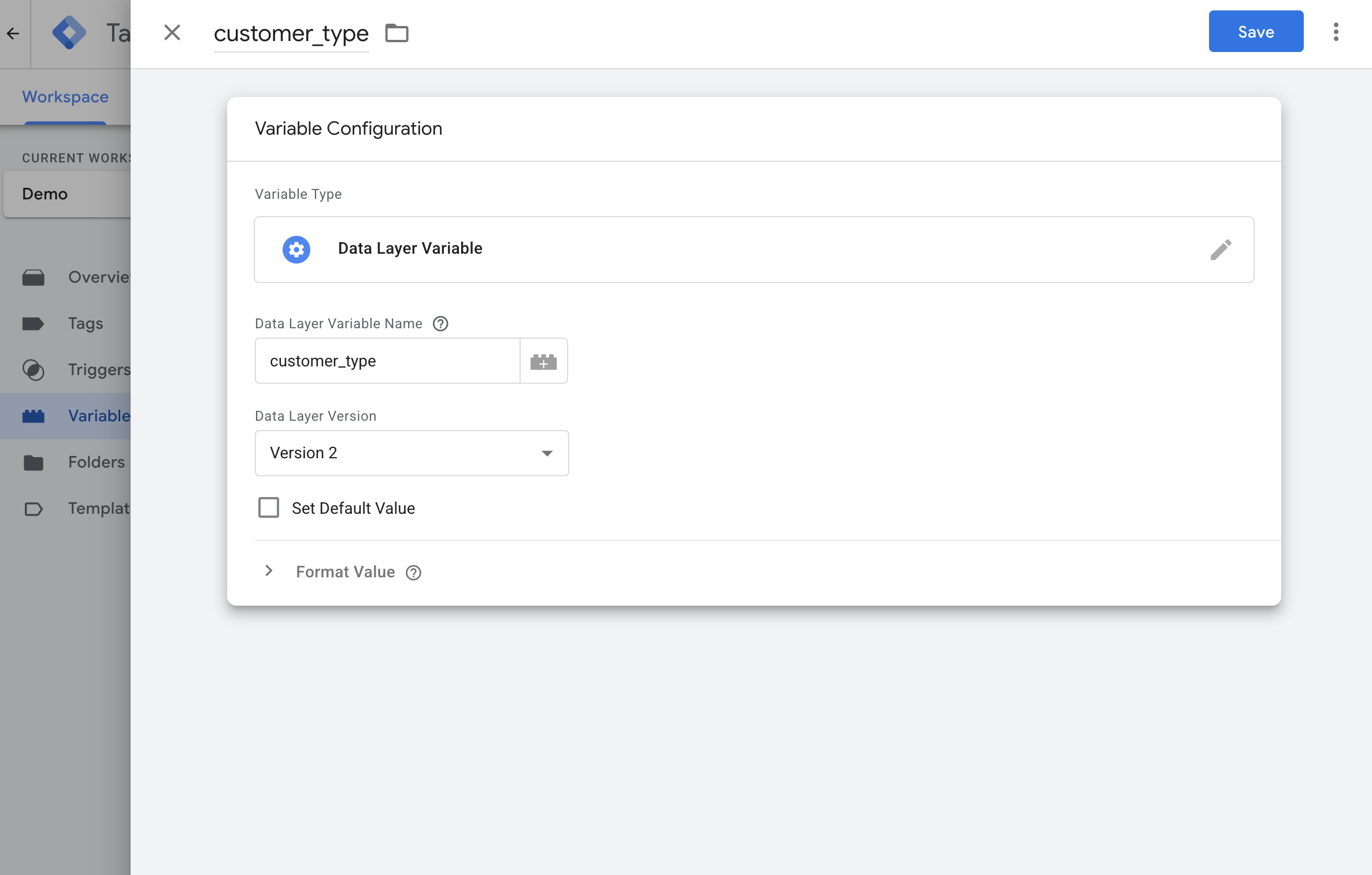
Add a **Data Layer Variable** for `customer_type` to the conversion dataLayer event when a user completes a transaction.
Create a Variable inside GTM that reads that value from the dataLayer, name it `customer_type`.
Click **Save**.
## Customer Type (event parameter)
Tracks whether a conversion event comes from a new or returning customer. Helps measure acquisition vs. retention performance.
### Expected values
* `new` -- The customer is making their first purchase.
* `returning` -- The customer has purchased before.
### Implementation via Google Tag Manager
Add a **Data Layer Variable** for `customer_type` to the conversion dataLayer event when a user completes a transaction.
Create a Variable inside GTM that reads that value from the dataLayer, name it `customer_type`.
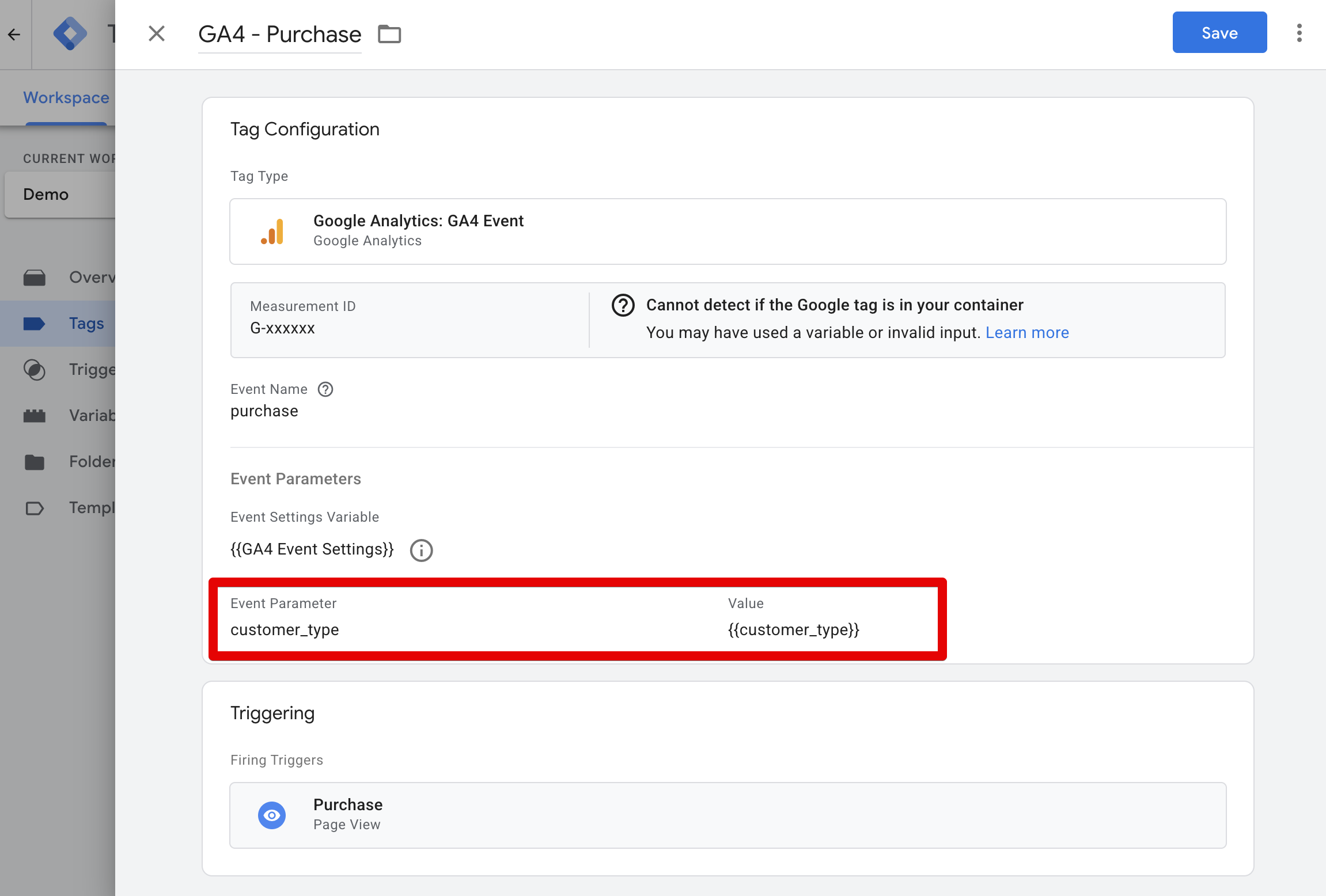
 Open your GA4 tag that tracks the conversion. Under the **Event Parameters** section, add:
* **Property Name:** `customer_type`
* **Value:** Your Data Layer variable (e.g., `{{customer_type}}`)
Open your GA4 tag that tracks the conversion. Under the **Event Parameters** section, add:
* **Property Name:** `customer_type`
* **Value:** Your Data Layer variable (e.g., `{{customer_type}}`)
 ### Implementation via gtag.js
Example adding `customer_type` to the purchase event:
```javascript theme={null}
gtag('event', 'purchase', {
transaction_id: 'T12345',
value: 199.99,
currency: 'USD',
// Custom parameter: Customer Type
customer_type: 'new' // "new" or "returning"
});
```
This documentation is built and hosted on [Mintlify](https://mintlify.com), a developer documentation platform.
### Implementation via gtag.js
Example adding `customer_type` to the purchase event:
```javascript theme={null}
gtag('event', 'purchase', {
transaction_id: 'T12345',
value: 199.99,
currency: 'USD',
// Custom parameter: Customer Type
customer_type: 'new' // "new" or "returning"
});
```
This documentation is built and hosted on [Mintlify](https://mintlify.com), a developer documentation platform.